How to Register Yubikey to your T-Mobile Account
Step 1: Go into the designated T-Mobile Kiosk on your site
Step 2: Login your T-Mobile email and password(if having issue with logging in, please call T-Mobile Service Desk)
Step 3: Once successfully logged in, wait for the browser to popup and wait for the 1-minute countdown to finish.
Step 4: Click COPY and CONTINUE
Step 5: Paste the temporary password on the next screen then hit "Enter"
Step 6: Once on the O355 dashboard, click + Add sign-in method
Step 7: Choose "Security key" as your method
Step 8: Select "USB device"
Step 9: Click "Next"
Step 10: Select "Security Key" on the next pop-up
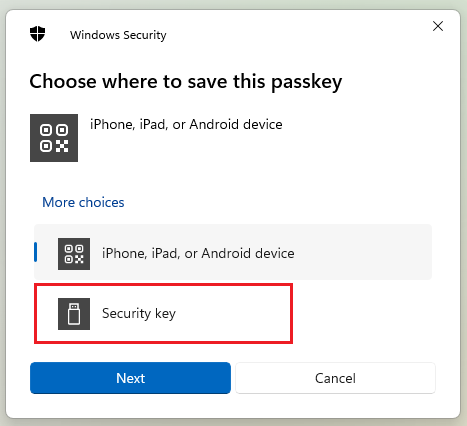
Step 11: Insert Security Key
Step 12: Click "OK" when prompted
Step 13: Type your unique security key PIN into the Windows security box, and then select OK.
Step 14: You'll return to the Setting up your new sign-in method box. Select Next.
Step 15: Return to the Security info page, type a name you'll recognize later for your new security key, and then select Next.
Step 16: Select Done to close the Security key page. The Security info page is updated with your security key information.
Note: If there's an existing Yubikey on your account, delete it if you're trying to register it again or if it is a new Yubikey
Related Articles
How to Reduce Mic Pick up in Windows
Please view the attached files for the guides on how to reduce headset microphone pickup and the proper way of wearing the headset. Thank you!TICKET TEMPLATE
Hi please provide the complete information of your issue/concern. Use this template upon creating ticket. Account: Name: Contact Number: WFH/Onsite: Floor: Shift: Email: PC Hostname: Call Center (Costa Rica, Philippines, US): Description of the ...How to Reset Citrix Workspace App
Hello, To help you with this, please use the troubleshooting steps below. First is to Clear Cache your Chrome Browser: In Chrome On your computer, open Chrome. At the top right, click the three-vertical dots and then Delete browsing data. Choose ...